






For CW Dynamic clients
Website changes,
even faster
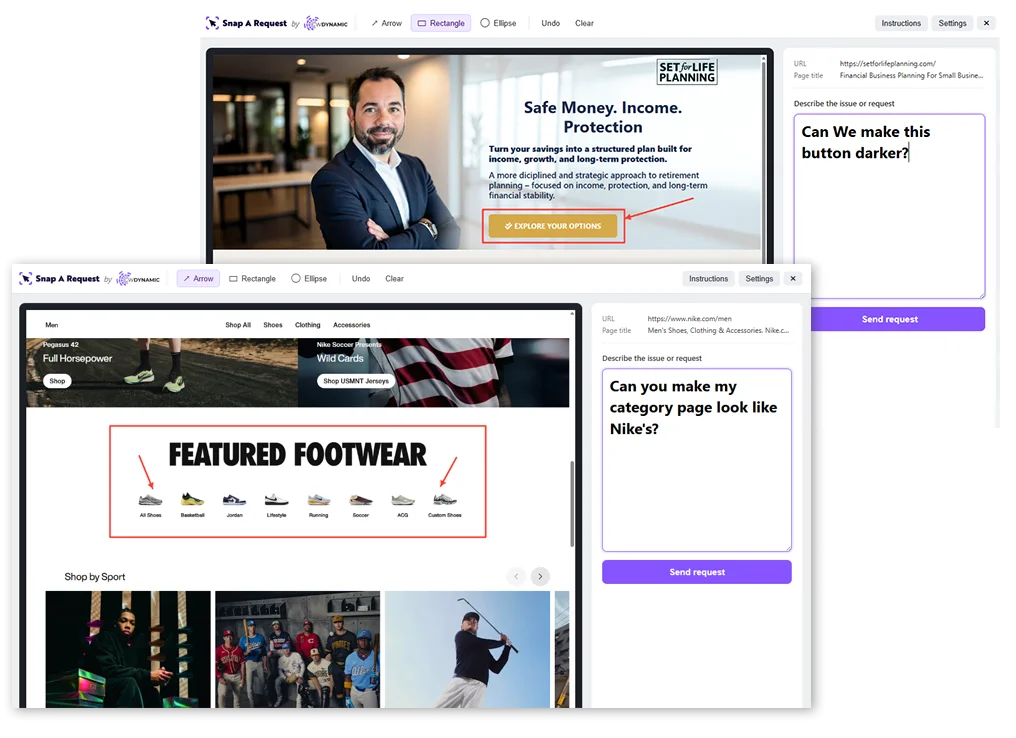
A free Chrome button we built for you. Spot something on your site that needs changed? Click it, draw an arrow, type one line, send. Done in about 30 seconds — no email, no screenshots, no "the thing in the corner."
Install the free Chrome extensionFree · 60 seconds to install · Works on any web page
Install it in 4 easy steps.
If you can click a button, you can install this. Here's exactly what happens when you click the purple button above.
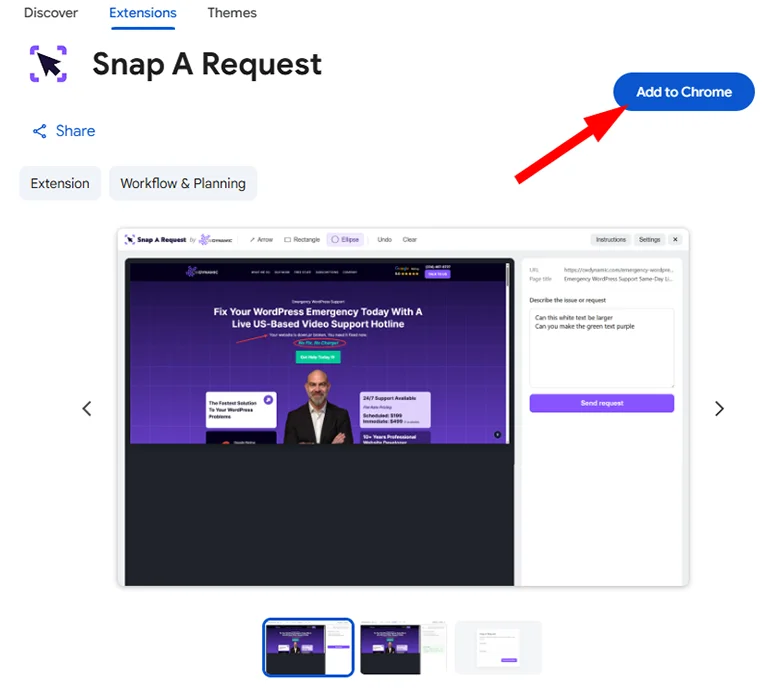
Click "Add to Chrome"
Clicking the purple button on this page opens the Chrome Web Store. Look in the top-right corner of that page and click the blue Add to Chrome button.
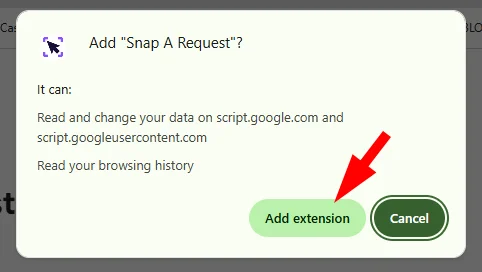
Confirm by clicking "Add extension"
Chrome will pop up a small window asking if you're sure. It lists what the extension does. Click the green Add extension button to confirm. That's it — it's installed.
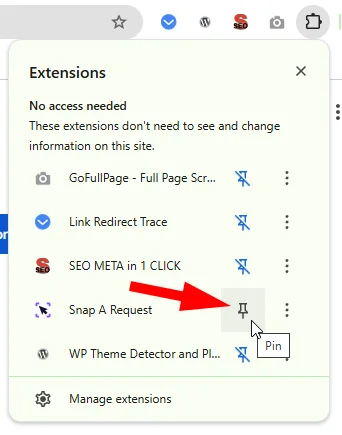
Pin it to your toolbar
Chrome hides new extensions by default. To keep the button always visible, click the little puzzle piece icon in the top-right of Chrome. You'll see a list of your extensions. Find Snap A Request and click the small pin icon next to it. The pin turns blue when it's pinned.
You're done. Use it anytime.
The Snap A Request icon now lives in your toolbar. Anytime you're on a page and want to send me a request, click it. The first time you click it, I'll ask for your name and email so I know who sent it — after that, you never have to enter them again.
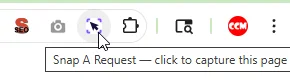
Get stuck anywhere? Text me or reply to any email from CW Dynamic — happy to walk you through it live.
Why I built this.
For years, my clients have described website changes to me in words. "The button on the second page, no, the other one, below the first photo, yeah that one." Then I'd guess. You'd correct me. I'd guess again.
It's not your fault. Describing visual changes in text is hard for everyone. But a 15-minute email chain for something you could point to in 2 seconds? That's a waste of your time.
So I built you a button. One click, screenshot, draw an arrow, hit send. Done.
How it works.
- 1 Open any page where you see an issue or want a change.
- 2 Click the Snap A Request icon in your Chrome toolbar.
- 3 A screenshot of the page opens in a new tab with drawing tools built in.
- 4 Use arrows, rectangles, or circles to point at what you mean.
- 5 Type a short message about what you want.
- 6 Click Send. You get a confirmation email with a reference ID. I get the screenshot, your note, and the URL.
Saw something you like somewhere else? Snap it anyway.
This isn't just for things that are broken on your site. If you're browsing another website and spot a layout, a button style, a color, a section — anything you'd like on your own site — click the button right there.
Draw a circle around what caught your eye. Type what you like about it and what you'd want done on your end. Send.
I'll get the screenshot, your note, and the exact page you saw it on. No "what site was that again?" ping-pong. I can look at the real thing, ask any questions, and scope it out for you.
What it captures
- The URL and title of the tab you're on
- A screenshot of the visible area, with your arrows
- The message you type
- Browser + screen size (so I can reproduce issues)
What it doesn't do
- Doesn't run in the background
- Doesn't track your browsing
- Doesn't read tabs other than the one you're on
- Doesn't share data with anyone except CW Dynamic
- Doesn't use your data for ads or analytics
Every request is answered within 24 business hours.
Most requests are completed within 48 business hours. If I expect something to take longer, I'll tell you before you hear crickets. For genuinely urgent stuff, text me — my clients know my number and that they can text me anytime.
Common questions.
Do I need a Google account?
No. You just need Chrome or a Chromium-based browser like Microsoft Edge. The extension installs from the Chrome Web Store like any other extension.
Does it work on Safari or Firefox?
Not yet. Chrome and Edge only for now. If you need Safari or Firefox support, email us through contact and I'll bump it up the list.
Is this only for CW Dynamic clients?
Right now, yes. The tool routes requests directly to my team. If you're not a client and you install it, nothing will happen when you click Send — because we're not expecting your requests.
What pages does it work on?
Any regular web page — yours, or anyone else's. It won't work on Chrome's own internal pages (chrome://, the Chrome Web Store itself, the PDF viewer) — that's a Chrome security rule.
What about privacy?
The extension only does anything when you click the toolbar icon. It doesn't watch your browsing, doesn't share data with third parties, doesn't use your data for ads. Full policy at cwdynamic.com/snap-a-request-privacy-policy.
60 seconds. Free. Forever.
Next time something on your site needs fixing — or you see something on another site you want on yours — you won't have to draft an email to describe it. You'll just click a button.
Install Snap A RequestQuestions? Contact.